Countdown GIFs and Animated Timers: Where to Find Them and How to Make Your Own
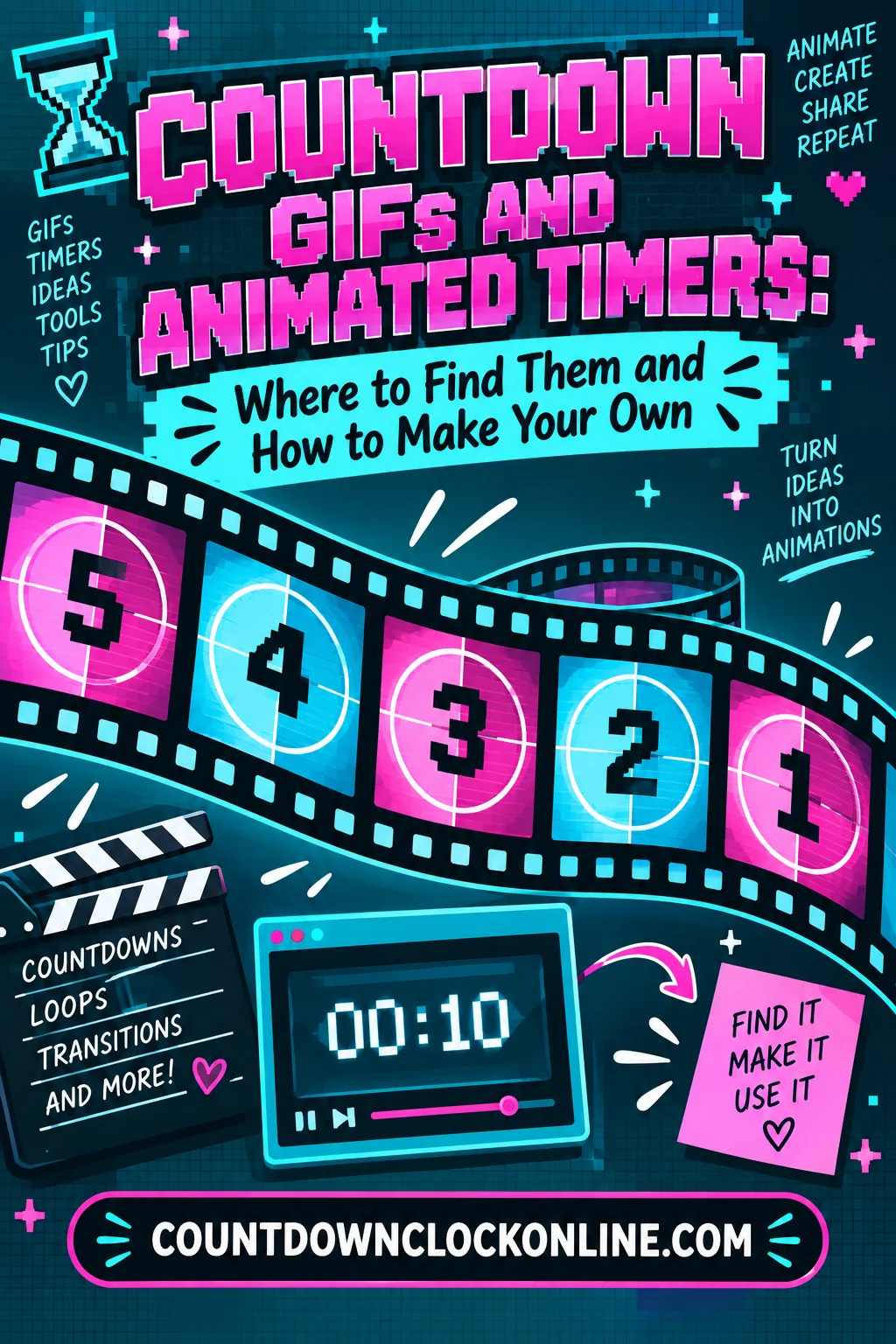
A countdown GIF is a looping image file with one frame per moment of the count, which is why short countdowns work beautifully as GIFs and long ones do not exist in any usable form. If you came here looking for a 5 hour countdown gif, the honest answer is in the arithmetic: five hours is 18,000 seconds, so even at one frame per second that file needs 18,000 frames. Nobody ships that.
That is not a reason to give up. It's a reason to know which of three assets you actually need — a GIF, a video file, or a live timer — then build the one you want properly.
Where Countdown Graphics Actually Get Used
Four jobs cover almost everything.
Stream starting-soon screens. A five or ten minute pre-roll while viewers arrive. The most common request, and the one most often better solved with a live timer overlay than a graphic.
Event and sale promos. A short animated number sequence in a social post or a video ad — usually a 10-to-1 flourish rather than a real clock.
Classroom and workshop transition timers. Two minutes to pack up, thirty seconds to line up. Short, repeatable, often projected.
Video intros. The leader-style sequence before the main content starts, covered in detail below.
Notice the pattern: the cases that genuinely suit a GIF run from seconds to a few minutes. Everything beyond that is a timer wearing a graphic's clothes.
The Frame Math, Honestly
A GIF stores discrete frames, and a number that changes needs a frame for each value it takes. The frame count is fixed by the duration and the update rate, and nothing clever gets around it.
| Countdown length | Frames at 1 per second | Frames at 10 fps | Practical as a GIF? |
|---|---|---|---|
| 10 seconds | 10 | 100 | Easily |
| 60 seconds | 60 | 600 | Yes |
| 5 minutes | 300 | 3,000 | At 1 fps, yes |
| 30 minutes | 1,800 | 18,000 | Painful |
| 1 hour | 3,600 | 36,000 | No |
| 5 hours | 18,000 | 180,000 | No |
Put numbers on the file size. A small flat-color frame — 480 by 270 pixels, few colors, no gradient — compresses to a few kilobytes once the encoder is only storing the pixels that changed. Call it 3 KB. Ten seconds is 30 KB. Five minutes at 1 fps is around 900 KB, a big but workable image. Five hours at 1 fps is 18,000 of those frames: tens of megabytes before you add a single design element, and worse at any resolution you'd really put on a stream.
There's a second problem people don't expect: GIF timing is not clock-accurate. Each frame carries its own delay in hundredths of a second, and the player adds those up as best it can. Frames get dropped, delays get clamped, background tabs get throttled. A ten-second GIF drifting half a second is invisible; a five-hour GIF drifting is a broken clock. GIFs are animations, not timekeepers.
Why a 5 Hour Countdown Gif Download Almost Never Delivers One
Search for a 5 hour countdown gif download and you'll get three kinds of results, none of which is the thing named.
A video file. Video codecs encode the difference between frames far more efficiently than GIF's palette scheme, so five hours of a static frame with changing digits compresses to something reasonable. Many pages still label these as GIFs out of habit.
A short loop that isn't a countdown. A ten-second animated loop of numbers, titled "5 hours" because that's what people search for. It never reaches zero and never tracks real time.
A live timer page or overlay. The correct answer, dressed up as a download. You set the target time and the graphic counts down in real time.
If you need five hours, take the third option. A running clock costs nothing to store, never drifts, and can be restarted or adjusted mid-event, which a baked file can never do. A countdown timer you can set and leave running will do the job that the file you were looking for cannot.
How to Make a Countdown GIF: Two Methods
Method one: record a running timer. Put a timer on screen, capture it with a screen recorder, then feed the recording to an online GIF encoder. Crop tight to the digits first — unused background is pixels you pay for in every frame. Drop the frame rate to match the update rate: a display that changes once a second does not need thirty frames a second. This is the fast path for anything that has to show real, formatted time.
Method two: build numbered frames. For short designed counts — 10 to 1, or 5 to 1 — draw each number as its own frame in a frame-based animation editor, or generate a numbered image sequence with a script and assemble it. Set one fixed frame duration for every frame: 100 hundredths for one second per number. You get total control of typography and color, and the frame count equals the number count, so ten seconds is ten frames and a couple of kilobytes.
Use method one when the content is a real clock, method two when it is a designed graphic.
Frame Rate Versus File Size
This is the biggest lever, and the one people get wrong by defaulting to video frame rates.
A countdown that displays whole seconds only needs one frame per second. Any more is duplicated frames. Some encoders collapse identical consecutive frames, but many exports don't, and you end up with a file thirty times larger showing exactly the same thing.
Go higher only when something moves smoothly between numbers — a sweeping ring, a shrinking bar, a fade on each numeral. Even then, 10 to 12 frames per second reads as smooth for simple graphic shapes. Going to 24 or 30 doubles the file for a difference most viewers never see on flat-colored animation.
Two other size levers, in order of impact:
Pixel dimensions. File size scales roughly with area, so halving the width and height quarters the pixel count. Export at display size, not canvas size.
Delta frames. GIF can store only the rectangle of pixels that changed since the previous frame, and on a countdown that rectangle is just the digits. Keep the background perfectly static — no drifting gradient, no animated texture, no subtle noise — and the encoder stores it once instead of 300 times. A background that "gently shifts" can multiply your file size by ten.
The 256-Color Limit and Why Flat Numbers Win
GIF allows at most 256 colors per palette, which is why a countdown ends up either crisp and tiny or muddy and enormous, with little in between.
Flat art compresses beautifully. A white numeral on a solid dark background is four or five distinct colors including the anti-aliased edges. Long runs of identical pixels are exactly what GIF compression is built for. You can often drop the palette to 16 or 32 colors with no visible change and cut the file substantially.
Gradients do not. A smooth gradient can't be represented in the available colors, so the encoder dithers — scattering pixels of two nearby colors to fake the shades between. That scattering is noise, and noise is the opposite of the long identical runs the compressor wants. The same design with a gradient behind it can be several times larger and look worse. Photographic backgrounds are worse again.
The rule: design countdown graphics as flat poster art. Solid background, solid numeral, one accent color, maybe a ring or bar. If you need a gradient or a photo behind the numbers, make a video file instead.
Looping: the Setting That Matters Most
A GIF carries a loop count. Most exports default to infinite, and for a countdown that default is wrong.
A countdown that ends at zero must not loop. If it loops, a viewer who arrives late sees the number jump from 0 back to 10 and correctly concludes the timer is fake. Set the loop count to play once and give the final frame a long delay so it holds on screen.
A decorative countdown can loop. A repeating 5-4-3-2-1 flourish behind a title card is a texture, not a timer.
Two cautions. Some platforms re-encode uploads and force looping regardless of what you set, so test on the destination. And a single-play GIF can't be replayed without a page reload — if the graphic must stop at zero and be restartable, that is a timer's job.
Transparency and Dithering Traps
GIF transparency is one bit: a pixel is fully opaque or fully invisible. There is no partial alpha, and that causes two very common failures.
Jagged or haloed edges. Anti-aliased numerals have semi-transparent edge pixels. On export those get forced to opaque or invisible, and the softening becomes either a hard staircase edge or a fringe in whatever color sat behind them at export time — usually a white or black halo that looks filthy over a colored background.
The fix. Set the export matte to the exact color of the background the GIF will sit on, so edge pixels blend into it instead of fringing against it. If you don't know the destination background, skip transparency: put the numbers on their own solid rectangle.
Turn dithering off for flat art. Dithering approximates colors you don't have. Flat design needs no approximating, and the pattern only adds noise, size, and a speckled look around solid shapes.
Designing the Countdown Numbers
The typography does most of the work, and there are four rules.
Use tabular figures. In many typefaces a "1" is narrower than an "8", so a centered countdown jitters left and right as digits change. Pick a font with fixed-width numerals, or set each digit in a fixed-width box. Jitter is the clearest tell of an amateur countdown graphic.
Decide about leading zeros first. 09, 08, 07 keeps the width constant and looks clinical; 9, 8, 7 is bolder and changes width. Either is fine; changing your mind halfway is not.
Size for the smallest screen. The numeral should fill a large fraction of the frame height.
Motion between numbers costs frames. A hard cut is one frame per number. A fade or scale on each number multiplies the frame count by the length of the transition. Affordable on a short sequence, ruinous over a minute.
For animated countdown numbers with more character, the cheap options are a ring that sweeps once per number, a bar that shrinks, and an accent color that shifts as you approach zero. All three are flat shapes, so they cost almost nothing.
The Old Film Countdown Look
The film leader countdown is the sequence at the head of a reel of film, and it is worth understanding before you imitate it, because most imitations get one detail wrong.
The leader is a length of film spliced ahead of the picture, there so a projectionist can thread the machine and so picture and sound line up. Its countdown shows large numerals, one per second, with a line sweeping around the frame like a clock hand, one rotation per numeral. That sweep is the point: a still numeral says nothing about whether the film is running at speed, while a rotating wipe tells you instantly.
The detail people miss: the standardized versions count 8 down to 2, and stop. There is no 1 and no 0 — the last second before the picture is blank, so no numeral ever flashes on screen as the feature begins. Some versions put a short beep on the "2" frame, two seconds before the first picture frame, as a sound sync reference. If you are building an old film countdown and you end on a big "1", you have built something that never existed.
The rest is texture: high-contrast pale numerals on gray, circular and crosshair registration marks, scratches and dust, slight frame weave, a flicker in brightness. Be careful with that texture in a GIF — grain is per-frame noise, and per-frame noise defeats both the palette and the delta-frame savings above. Use coarse, sparse damage rather than fine grain, or keep the grain on a static overlay that doesn't change frame to frame.
Export Checklist
- Frame rate matched to the update rate, not to video habits
- Pixel dimensions set to display size, palette reduced, dithering off
- Background perfectly static, so only the digits are delta-encoded
- Loop count set to once for a real countdown, infinite only for decoration
- Final frame given a long delay so it holds at zero
- Transparency either matted to the destination color or avoided entirely
- Tested on the actual platform, in case it re-encodes your file
Frequently Asked Questions
Is there such a thing as a real 5 hour countdown gif? Not in any practical form. Five hours is 18,000 seconds, so a GIF updating once per second needs 18,000 frames — tens of megabytes at best, and it drifts away from real time as it plays. Long countdowns are distributed as video files or run as live timers.
Why does my countdown GIF restart instead of stopping at zero? Because its loop count is set to infinite, the default in most export settings. Set it to play once and give the final frame a long delay so it holds. Some platforms re-encode uploaded GIFs and force looping anyway, so test on the destination.
How do I make my countdown GIF file smaller? Reduce the pixel dimensions first, since size scales with area, then drop to one frame per second if the display changes only once a second. Use a flat background with few colors, turn dithering off, and keep the background completely static so the encoder only stores the changing digits.
What are the numbers in an old film countdown? The standardized leader counts from 8 down to 2, with a line sweeping around the frame once per number, then goes blank for the last second before the picture starts. There is no 1 and no 0, which is the detail most modern imitations get wrong.