How to Add a Countdown on Facebook and Instagram
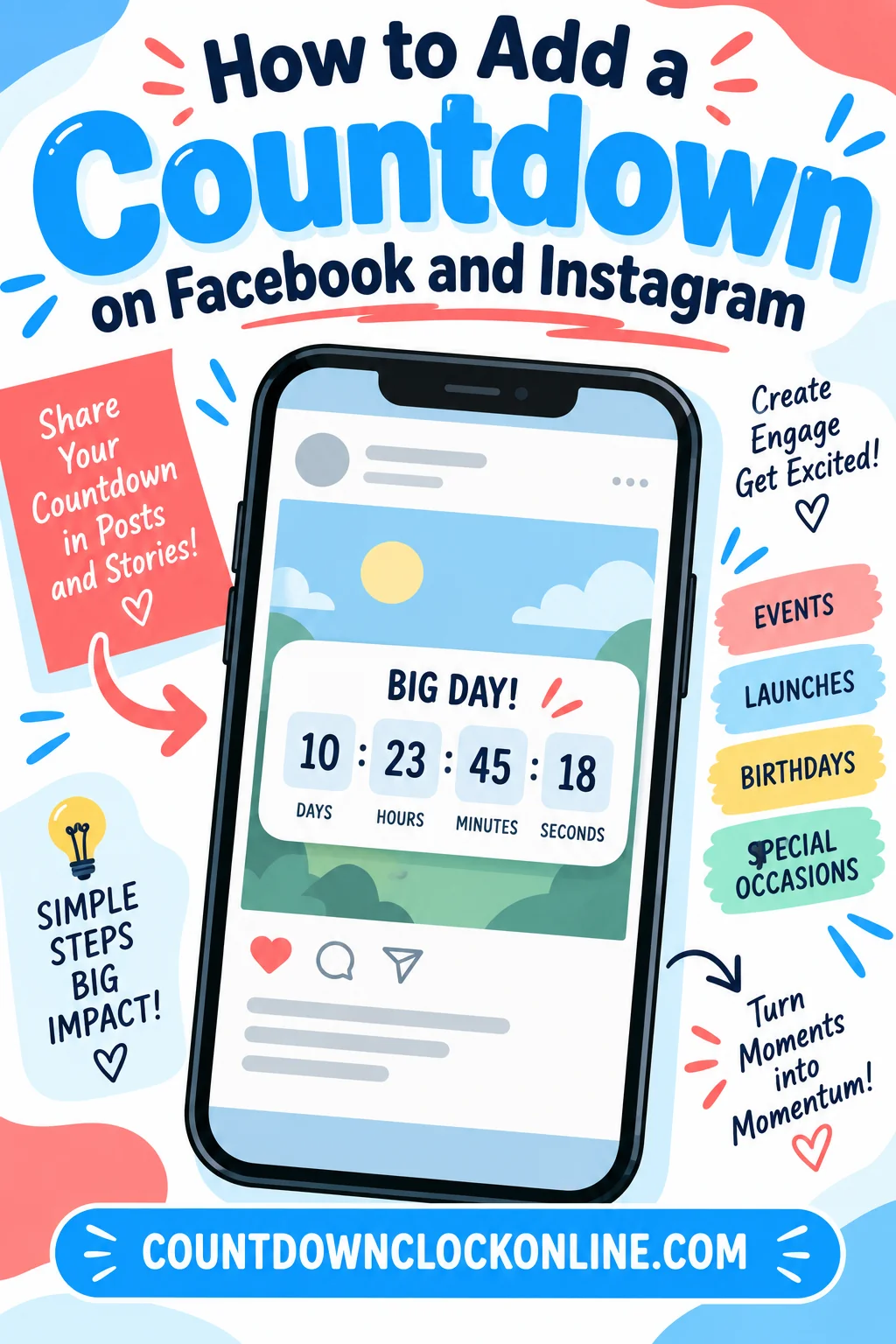
There are three genuinely different ways to put a countdown on a social post, and picking the wrong one is why so many of them show the wrong number. You can use a native countdown overlay the app itself provides, you can attach a date to an event so the platform displays the time remaining for you, or you can make the countdown graphic yourself and upload it like any other photo or video.
Each behaves differently once it is live. One updates itself in real time. One updates only while the event object exists. One is frozen the second you hit post. Understanding which is which matters more than knowing where any particular button sits — and this article deliberately does not tell you where the buttons sit, for reasons worth stating up front.
Why This Guide Does Not Give You Exact Taps
Social apps redesign their creation tools constantly. Menus get renamed, stickers move between trays, features roll out to some accounts months before others, and options appear or disappear depending on your app version, your account type, your region and whether you are on a phone or a desktop browser.
Any article that says "tap the third icon from the left, then scroll to the second row" is wrong within a few months, and following stale directions is how people conclude a feature does not exist when it is simply somewhere else. So the instructions below describe what you are looking for and what it does, not a fixed path. The exact placement varies by app version. If you know you are hunting for an overlay layer that holds interactive elements, you will find it in thirty seconds no matter what the tray is called this year.
That said, the underlying mechanics have been stable for a long time, and those are worth learning properly.
The Three Approaches Compared
| Approach | Updates itself? | Lives where | Best for |
|---|---|---|---|
| Native countdown overlay | Yes, ticks in real time | Ephemeral/story-style posts | Launches, drops, personal milestones |
| Event with a date attached | Yes, while the event exists | Event pages and their shares | Parties, classes, public dates |
| Uploaded graphic or video | No, frozen at upload | Feed posts, reels, ads, anywhere | Campaigns, branding, cross-posting |
Approach One: The Native Countdown Overlay
This is the interactive element people mean when they talk about an instagram story countdown sticker. It is a small widget you place on top of an ephemeral post, you give it an end date and time, and the app renders the remaining time live for everyone who views it. Viewers can usually tap it to be reminded when it ends, and in some versions they can share it onward to their own story.
The general mechanics, which have not changed much:
- Open the composer for the ephemeral format. Not the ordinary feed post — the story-style, disappears-after-a-day format. Native countdowns have always lived here.
- Add or select your background first. A photo, a video, a solid color. The overlay sits on top, so get the background settled before you place it.
- Open the overlay layer. Every version of these apps has a tray of things you can stick on top of a story: location tags, polls, questions, music, mentions. The countdown lives with them. It may be an icon in a toolbar, an item in a scrollable sheet, or something you reach by swiping up on the canvas. Look for the tray, then look for a timer or countdown item inside it.
- Set the end moment. You will get a date picker and a time picker. This is the step where most countdowns go wrong, and there is a whole section on it below.
- Name it. The label sits above the numbers. Keep it short — "Doors open," "Album out," "Tickets live." Long labels wrap and eat the canvas.
- Place and size it. Drag to move, pinch to resize, and in most versions tap it to cycle through color themes.
- Post.
Once it is live, the widget counts down on its own. When it reaches zero it typically switches to an ended state, and anyone who tapped to be reminded may get a notification. Whether reminders exist and how they are delivered depends entirely on the app version and the viewer's notification settings, so never build a campaign that depends on them firing.
The catch: ephemeral posts expire, usually after a day. A countdown to something three weeks away has to be reposted every single day, or it vanishes from your profile long before the moment arrives. Some versions let you pin a story to your profile in a highlights-style collection, which extends its life. Whether the countdown keeps ticking once archived that way varies, so check yours rather than assuming.
Approach Two: A Countdown for Facebook Event
If the thing you are counting down to is a real event with a date, attendees and a location, attaching the date to an event object is the most durable option available. A countdown for facebook event is not really a sticker at all — the platform reads the start time from the event and renders "starts in three days" or a similar line wherever the event appears.
Why it beats a sticker for anything scheduled:
- It does not expire after a day. The event page persists until the date passes.
- People can respond, which gives you a headcount and gives them a reminder from the platform's own calendar logic.
- It shows the correct local time to every viewer automatically, which is the single hardest problem to solve any other way.
- Sharing the event carries the countdown with it. A shared screenshot of a sticker carries nothing.
The mechanics are simple in every version: create the event, set a start date and time, set the time zone, and the time-remaining display comes for free. If you want more prominence than the platform gives you by default, pair the event with an uploaded countdown graphic — approach three — and post that graphic on a schedule leading up to the date.
Approach Three: Upload Your Own Countdown Graphic
This is the approach that works on every platform, in every format, forever, and it is what most serious campaigns actually use. You make the countdown as an image or a short video, and you upload it like any other media.
The trade-off is obvious and unavoidable: it does not update. A facebook countdown post that says "5 days to go" says "5 days to go" for the rest of its life. Two weeks later it is still sitting in your feed insisting there are five days left.
That is manageable if you design around it:
- Count in whole days, not hours and minutes. "3 days" stays true for a whole day. "71 hours 12 minutes" is wrong sixty seconds after you post it.
- Post on a cadence rather than once. A workable rhythm for a launch is seven days out, three days out, one day out, the morning of, and one hour before. Five posts, each accurate on the day it goes up.
- Date-stamp the graphic. Putting the actual target date on the image — "Saturday the 14th, 7pm" — means the post stays useful even after the number is stale.
- Delete or archive the stale ones if the account is one people scroll back through.
- Or link out to a live timer. A post can point at a page that holds a real ticking clock, which stays correct forever. Set the target once with an online countdown clock and share that link in the caption or in your profile link slot, so the post carries the announcement and the link carries the accuracy.
For a social media countdown that runs across several platforms at once, the uploaded graphic is the only approach that gives you a consistent look everywhere, since native stickers differ from app to app and some platforms have none at all.
The Time Zone Trap
This breaks more countdowns than anything else, and it works differently for each approach.
A native countdown overlay is anchored to an absolute moment in time. You set it in your own time zone, and every viewer sees the correct remaining time for wherever they are. Someone eight hours behind you sees the same "12 hours 40 minutes," and their clock hits zero at the same instant yours does. That is correct behavior and it is what you want.
The problem is that people set the time as though it were local to the audience. If you are in one time zone and your event happens in another, you must enter the event's real moment, converted into your own zone, or the timer ends at the wrong hour for the people it matters to.
An uploaded graphic has no time zone at all. If your image says "starts at 8pm," a viewer three zones away has no idea which 8pm you mean. Fix it in the text: put the zone abbreviation on the graphic, or state the time in one named zone and let people convert.
An event object is the only approach that handles this properly on its own, because it stores a real time zone and displays local time to each viewer. If the date genuinely matters to a scattered audience, use an event.
Sizing and Placement That Survives the Crop
Two durable rules, both about the fact that app interface elements sit on top of your content.
Vertical posts get their top and bottom covered. The story-style format is a tall 9:16 canvas, and the app draws its own controls over the top strip and the bottom strip — profile info up top, reply and share controls at the bottom. Keep the countdown and any text inside the middle portion of the canvas. A number placed beautifully at the very bottom will sit underneath a reply box.
Feed posts get cropped in the grid. A tall image gets center-cropped to a square in profile grids and in some previews. If the countdown numerals are near an edge, they get sliced off in exactly the view where people first see the post.
Beyond that: make the numerals large enough to read at thumbnail size, put the number and the label on different lines, and use high contrast. Countdown graphics are usually seen for under two seconds at half size on a bright phone screen outdoors. Thin numerals in a low-contrast color are decorative rather than informative.
Accessibility and the Caption
Whatever approach you use, put the actual date and time in the caption as plain text. Screen readers do not read a countdown overlay. Search inside the app does not index numerals baked into an image. And a viewer who takes a screenshot to remember it later has captured a number that is already out of date.
The caption is also where you handle the ended state. When a countdown hits zero, the post it lives on does not delete itself — it just becomes confusing. A caption that names the date means the post reads correctly forever, as an announcement rather than a broken timer.
When the Countdown Option Is Missing
If you cannot find a native countdown where a guide says it should be, work through this in order:
- Update the app. By far the most common cause. Interactive overlays are added and rearranged in updates.
- Check you are in the ephemeral composer, not the ordinary feed composer. Native countdowns have never been a feed-post feature.
- Try the phone app rather than a desktop browser. Creation tools on the web are consistently a subset of the mobile ones.
- Check your account type. Personal, creator and business accounts have had different tools available at different times.
- Accept that it may not be there. Features roll out unevenly by region and by account, and some are removed entirely. If it is missing, approach three works everywhere. Make the graphic and upload it.
The general lesson: build your plan around the approach that cannot break. A countdown on FB or anywhere else that depends on one specific in-app widget is one redesign away from being impossible. A graphic you made yourself, plus a link to a live timer, works on every platform there is.
Frequently Asked Questions
Does a countdown sticker keep updating after I post it? Yes. Native countdown overlays are anchored to a real moment in time and recalculate for every viewer, so the number is correct whenever someone opens the post. Uploaded images and videos do not update at all — they show whatever they showed when you made them.
Why does my countdown show a different time to my followers? It should not, if it is a native overlay, because those count down to one absolute moment and simply display the remaining time. If viewers report a different time, you most likely set the target in your own local zone when you meant a different zone, or you baked a written time into a graphic without saying which zone it refers to.
How do I make a countdown last longer than a day? Ephemeral posts expire, so a native countdown to a distant date has to be reposted, pinned to a profile highlight where your version allows it, or replaced by an event with a date attached. For anything more than a week out, an event or a linked live timer page is more reliable than reposting daily.
What is the most durable way to run a social media countdown? Make your own countdown graphics, post them on a cadence of whole days rather than once, put the target date in the caption as plain text, and link to a live timer page for anyone who wants the exact remaining time. That combination works on every platform and survives every app redesign.