Countdown Timers in PowerPoint: Three Ways That Work
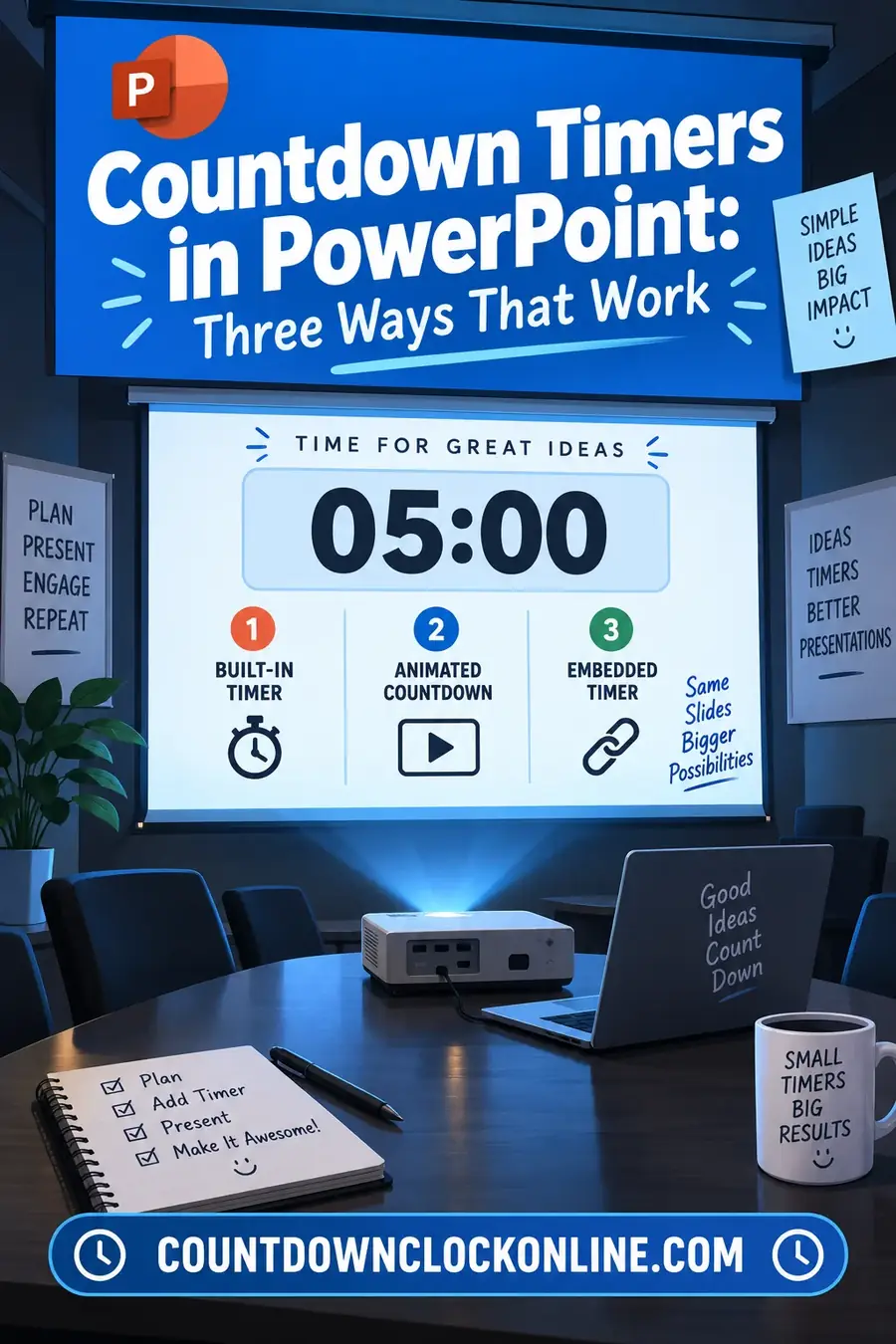
PowerPoint has no native countdown timer, so every method is a workaround — and which one to use depends entirely on whether you'll have internet access in the room. The three approaches are built-in animation, an embedded video, and a live web timer. Each fails in a different, predictable way.
Method 1: Built-In Animation
How it works: put each number on its own text box, stacked in the same position, then use entrance and exit animations timed to one second each so they replace one another in sequence.
Best for: short timers — 10 to 60 seconds — where you need everything self-contained in the file.
The upside: no internet, no external files, works on any machine that opens the deck. It survives being emailed, presented from a USB stick, or opened on a conference-room laptop you've never seen.
The downside: building a 5-minute timer this way means 300 text boxes. It's genuinely impractical past about a minute, and even a 60-second version is fiddly to adjust once built.
Practical build: create the first number, set its animation to Appear at 0 seconds and Disappear after 1 second, then duplicate and shift each subsequent number's start by one second. Use the Animation Pane rather than the ribbon — the ribbon becomes unusable past a dozen animations.
Method 2: Embedded Video
How it works: insert a countdown video file into the slide, set to play automatically.
Best for: any timer over about a minute, and anywhere you want a polished look with motion or sound.
The upside: handles any duration without extra work, looks professional, and plays reliably once embedded.
The downside: file size. A five-minute high-resolution timer video can add substantially to a deck. It also can't be adjusted — if you need six minutes instead of five on the day, you need a different video.
Critical setting: make sure the video is embedded rather than linked. A linked video plays perfectly on your machine and shows a broken placeholder on any other, which is the single most common presentation failure of this method. In PowerPoint, inserting from your device embeds by default; dragging a file in sometimes links instead.
Method 3: Live Web Timer
How it works: don't put the timer in the deck at all. Open a browser tab with a countdown clock alongside your presentation, and switch to it when you need the timer.
Best for: breaks, workshop activities, exercises with a fixed duration, and any situation where the exact time might change on the day.
The upside: total flexibility. Change the duration in two seconds, restart it, pause it. Nothing to build in advance and no file size cost.
The downside: requires internet, requires switching away from your slides, and depends on the room's setup letting you switch windows cleanly.
For workshops this is usually the right answer despite the downsides, because activity timings change constantly in the room and a hard-coded video can't follow.
Choosing
| Need | Use |
|---|---|
| Under 60 seconds, self-contained | Animation |
| Over 60 seconds, fixed duration | Embedded video |
| Duration may change in the room | Live web timer |
| No internet guaranteed | Animation or embedded video |
| Break timer during a workshop | Live web timer |
| Countdown to a moment on a big screen | Live web timer |
What Goes Wrong
The linked-video failure. Covered above and worth repeating, because it's the most common. Test the deck on a different machine before the event.
Slide advance killing the timer. If a timer is on slide 12 and you advance to 13, the timer stops. If people need to see it while you talk, it has to be on the slide you're on — or in a separate window.
Auto-advance not enabled. Animation-based timers need the slide to hold. If the deck is set to advance on click and someone clicks, the timer jumps.
Presenter view confusion. In presenter view, timings can behave differently on the presenter screen versus the audience screen. Test in the actual dual-screen setup you'll use, not on a single laptop screen.
Sound. A timer video with audio will play through the room's system, which is either exactly what you want or an unpleasant surprise. Check before, not during.
For Specific Situations
Exam or test timing. Use a live web timer projected on a second screen, not a deck animation. You need to be able to add time, and you need it visible continuously without touching your slides.
Conference session breaks. A live timer on the screen while people are out of the room. Set it to the actual return time rather than a duration, so latecomers can see how long they have.
Countdown to an event start. A live timer showing minutes until the session begins, displayed while people arrive. Better than a static "starting soon" slide because it manages expectations precisely.
Timed activities in a classroom. Web timer, full screen, on a projector. The visible number does most of the classroom management work.
A dramatic 10-second countdown. Animation or video, embedded, with the last few numbers large. Worth building properly because this is the one case where polish is the point.
Building the Animation Version Step by Step
If you're going the built-in route for a short timer, the process is fiddly but entirely doable.
- Create a text box with your highest number — say 10 — positioned where you want it.
- Duplicate it and change the text to 9. Position it exactly on top of the first. Use the alignment tools rather than dragging, or the numbers will jitter as they change.
- Repeat down to zero, or to 1 plus a final message.
- Open the Animation Pane. The ribbon becomes unusable past about a dozen animations; the pane is the only practical way to manage this.
- Give the first number an Appear animation at 0 seconds and a Disappear at 1 second.
- Set each subsequent number to Appear one second later than the previous, with Disappear one second after that.
- Set the slide to advance automatically or not at all, so a stray click doesn't skip the sequence.
- Test it in presentation mode, not the editor. Timings behave differently.
For anything over about sixty numbers this becomes genuinely impractical, which is where the video or live-timer routes take over.
Choosing Between the Three Methods
| Requirement | Animation | Embedded video | Live web timer |
|---|---|---|---|
| Works offline | Yes | Yes | No |
| Duration changeable on the day | No | No | Yes |
| Practical over 60 seconds | No | Yes | Yes |
| Adds to file size | Minimal | Substantial | None |
| Survives being emailed | Yes | Yes (if embedded) | Yes |
| Needs a window switch | No | No | Yes |
| Can be paused or restarted | No | Partly | Yes |
The honest summary: most people reaching for a PowerPoint countdown actually want the live web timer, and build an animation because it feels like the "proper" way to do it inside the deck.
Presenting With a Timer Successfully
Test in the real setup. Dual screens, presenter view, the actual room's projector. Timings and video playback behave differently than they do on a laptop alone.
Know how to skip it. If the timer misbehaves mid-session, you need to move past it without fumbling. Know the slide number.
Don't put a timer on a slide you'll talk over. A moving countdown pulls attention away from a speaker completely. Timers belong on slides where the timing is the content.
Mute the sound unless you want it. A timer video with audio will play through the room system, which is either exactly right or a genuine surprise.
Have a backup. A phone timer in your pocket covers every failure mode the deck has.
Common Failures and Fixes
"The video plays on my laptop but not on the meeting room PC." Linked rather than embedded. Re-insert the file so it lives inside the deck.
"The timer stops when I change slides." Expected behavior. A timer on slide 12 stops when you advance to 13. If it must run while you talk, it has to be in a separate window.
"The animation jumps or skips numbers." Usually the slide is set to advance on click and someone clicked. Set the slide to advance automatically, or to not advance at all.
"The numbers jitter as they change." The text boxes aren't precisely aligned. Use the alignment tools rather than dragging by eye.
"It plays too fast in presenter view." Timings can behave differently across dual screens. Always test in the actual configuration you'll present in.
"The sound plays and I didn't want it to." Mute the video in the deck, not just on the machine, since the room's audio may be routed separately.
"The timer finished but I need more time." The fundamental limitation of any embedded timer. This is the argument for the live web version.
Which Method for Which Situation
A ten-second launch countdown. Animation, embedded, with the final numbers large. Worth building properly since it's a moment.
A five-minute break. Live web timer. Duration changes constantly and you need to be able to restart it.
A timed exam or test. Live web timer on a second display. You need to add time and it must stay visible independently of your slides.
A workshop activity. Live web timer, full screen, projected. It does the facilitation for you.
A conference session countdown before you start. Live timer showing minutes until the session begins, running while people arrive.
A deck someone else will present, offline. Embedded video. It's the only method that travels reliably without internet and without you there to run it.
A Note on Slide Design
Whatever method you use, the timer's visual design does most of the work.
Big. A timer that people have to look for isn't creating any urgency. It should be the largest thing on the slide by a wide margin.
High contrast. White on black or black on white. Colored timers on colored backgrounds lose legibility in a bright room.
No other content on the slide. A countdown competing with bullet points is a countdown nobody watches.
Consider what the number means. For a break, showing the return time ("Back at 11:15") is often more useful than showing minutes remaining, since people can plan around a clock time.
Show fewer digits as it shortens. Minutes and seconds for a five-minute timer; seconds only for the final ten. Unnecessary precision is visual noise.
Quick Reference
Under 60 seconds, offline: built-in animation, one text box per number. Over 60 seconds, fixed duration: embedded video — embedded, not linked. Duration might change: live web timer in a browser tab. Always: test in the real presentation setup, on the real screens, before the session.
Building a Countdown for PPT Files You Have to Send to Someone Else
The three methods behave very differently the moment the deck leaves your machine, and that is worth planning for before you build anything.
The animation method travels safely. It lives inside the file itself, so a countdown for PPT files that will be emailed, uploaded to a shared drive, or handed over on a USB stick is safest built this way - it needs no internet connection and no external file, and it survives being opened on a machine you have never seen.
The embedded video method travels only if the video is genuinely embedded rather than linked. PowerPoint can do either, and a linked video breaks the moment the file moves without the video file alongside it. Check the file size after inserting: if the deck barely grew, the video is linked, not embedded.
The live web timer method does not travel at all in any reliable sense. It needs a working connection on the presenting machine and an unblocked site, neither of which you can guarantee on someone else's laptop or a locked-down conference network. Use it for decks you present yourself, and swap in an animated version before you hand the file to anyone else.
Frequently Asked Questions
Does PowerPoint have a built-in countdown timer? No. Every method is a workaround — stacked text-box animations, an embedded video, or switching to a live web timer in a browser. There's no native timer feature.
Why doesn't my embedded countdown video play on another computer? Almost always because the video is linked rather than embedded. A linked file points at a path on your machine and shows a placeholder anywhere else. Re-insert it so the file is embedded in the deck.
What's the best countdown method for a workshop break? A live web timer in a browser tab. Break lengths change on the day constantly, and a timer you can adjust in seconds beats a hard-coded video every time.
How long can an animation-based timer realistically be? Up to about a minute. Each second needs its own text box with its own animation timings, so a five-minute timer would require several hundred objects — technically possible and not worth doing.