Google Countdown Timer vs a Browser Countdown: Which to Use
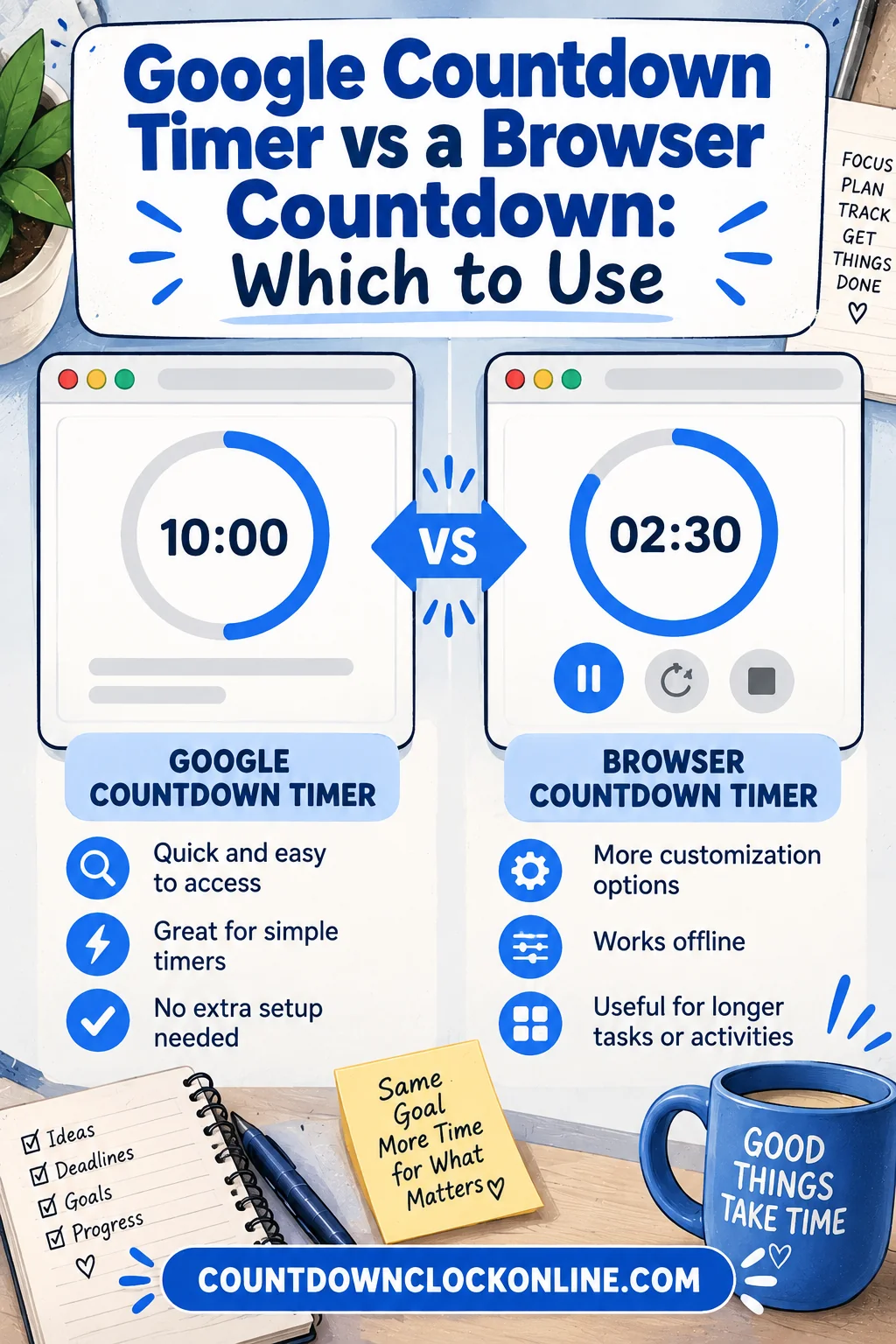
Use the google countdown timer when you need a short timer in three seconds and nobody else has to see it. Use a dedicated browser countdown when the clock has to be readable across a room, run for hours or days, or stay put while you keep working in other tabs. That is the whole decision in two sentences, and for most people it comes down to whether the timer is for you alone or for an audience.
Both tools do the same arithmetic. The difference is what surrounds the numbers: how big they get, where they live, what happens when you switch tabs, and whether the timer survives a stray click. This article walks through those differences in plain terms so you can stop guessing which one to open.
What the built-in search timer actually does
Type a duration into the search box and a small timer panel appears above the results with a running clock, a pause button, and a reset. It starts on its own. You do not confirm anything, you do not pick a format, and you do not create an account. When it reaches zero it plays a short alert tone, assuming the tab is still open and your device volume is up.
That panel is deliberately minimal. It shows hours, minutes, and seconds in a modest typeface at the top of a page that is otherwise full of search results. There is a fullscreen control that enlarges the digits, which helps, but the timer still lives inside a results page rather than on a page of its own.
The strengths are real and worth naming. It is the fastest possible path from thought to running clock. It requires no navigation. It handles the two most common cases, a few minutes for food and a few minutes for a break, better than almost anything else because the setup cost is essentially zero.
What a browser countdown does differently
A dedicated countdown page starts from the opposite assumption: the clock is the point of the page, so it gets the whole page. The digits scale to the window, the background is plain, and nothing competes for attention. That single design choice drives most of the practical differences.
An online countdown timer built as its own page can also do things a search panel is not designed for. It can count down to a fixed date and time rather than a duration, which is what you need for a launch, an exam, or a holiday. It can be left running on a second monitor for an entire afternoon. It can be projected without a page of search results sitting underneath it.
There is also the matter of what the address bar holds. A countdown page usually encodes the target in the URL, so the same link reopens the same countdown. That makes it something you can bookmark, pin as a tab, or send to a colleague. A search panel exists only in the session that created it.
| Situation | Search box timer | Dedicated countdown page |
|---|---|---|
| Two minute kitchen timer | Ideal | Works, slower to set up |
| Timer visible across a classroom | Cramped | Built for it |
| Counting down to a date weeks away | Not designed for it | Core feature |
| Reopening the same timer tomorrow | Must retype | Bookmark the link |
| Running while you browse elsewhere | Tab must stay open | Tab must stay open |
| Setup time | About three seconds | About fifteen seconds |
When the search panel is the right call
Reach for the search box whenever the timer is short, private, and disposable. Steeping tea. A five minute stretch away from the desk. A quick focus block where you only need a nudge at the end. Anything you would forget about the moment it finishes belongs in the search panel, because the effort of opening anything else is larger than the benefit.
It is also the better option on a phone in a hurry. The search field is already there, voice input handles it, and you are done before a separate page would have finished loading.
The pattern to notice is that all of these cases share one trait: you are the only person who needs to see the number. The moment a second pair of eyes is involved, the calculation changes.
When you want a countdown timer online instead
Open a countdown timer online when any of the following is true.
The clock has to be legible from a distance. Teachers running a timed activity, coaches at the far end of a gym, presenters at the back of a room, and anyone using a projector all need digits measured in inches, not pixels. A page that fills the screen with the number does this without a workaround.
The event is further away than a few hours. A search panel counts a duration you type. If you want the countdown to end at a specific moment next Tuesday, you would have to calculate the intervening hours yourself, and any pause or reload throws it off. A date-based countdown handles that natively.
Other people need the same clock. Sending someone a link that opens the identical countdown is far more reliable than telling them to type a duration and hoping you both start at the same instant.
You want a countdown with timer behavior you control. Some sessions want a silent finish because a sound would interrupt a recording. Others want the digits to keep counting up past zero so you can see how far over you ran. A dedicated page gives you room for those choices where a compact panel cannot.
The countdown timer app question
There is a third option people forget: the clock application already installed on the phone in your pocket. Every phone ships with one, it runs when the screen is off, and it will interrupt other audio to get your attention.
A countdown timer app on the phone beats both browser options in exactly one scenario, which happens to be common: you need the alert to reach you when you are not looking at a screen. Cooking, laundry, moving between rooms. Nothing in a browser can wake a locked device the way a native alarm does.
Where the phone loses is visibility for a group and precision for long horizons. A phone screen face-up on a desk is not a display for twelve people, and phone timers are built around durations rather than dates. So the honest framing is not browser versus app. It is: alert-driven timers belong on the phone, watched timers belong on a screen everyone can see.
Accuracy, background tabs, and the thing that trips people up
Both browser options depend on the tab staying alive. Modern browsers throttle background tabs to save battery, which means a timer that updates every second may update far less often when hidden. Well-built countdown pages work around this by storing the target time and recalculating from the system clock rather than counting ticks, so when you return to the tab the number is correct even if the visible animation stuttered.
The practical advice is the same either way. If the finish matters, keep the tab visible, or use a second window, or use the phone. Do not put a browser timer behind twenty other tabs and expect a sound to reach you. Laptop sleep is the harder failure: a sleeping machine runs nothing, and a well-built page will simply show the correct remaining time when it wakes rather than pretending the missing minutes did not pass.
One more quiet detail worth knowing. A date-based countdown reads your device time zone. If your laptop clock is wrong, or you are traveling and the machine has not resynced, the countdown will be confidently wrong by exactly that offset. Check the system clock before you trust a countdown to a flight.
Sound, and why it is the deciding factor more often than people expect
Ask what has to happen at zero and the answer usually picks the tool for you.
If the answer is "a noise reaches me," you want the phone. If it is "the room sees the number hit zero," you want a full-page countdown. If it is "I glance up and notice," either browser option is fine and you should use whichever is closer.
Browser tabs are also subject to autoplay rules, meaning a page cannot always make sound unless you have interacted with it first. Pressing start counts as interaction, so a timer you started yourself will normally chime. A countdown that was already running when you opened the link may not. That is a real constraint, not a flaw in any particular tool, and it is another reason the phone stays the reliable choice for unattended alerts.
Setting up a shared countdown for a class or meeting
Here is the sequence that works, refined by anyone who has done it more than twice.
Open the countdown page before the session starts, not during it. Set the target, confirm the digits are large enough by standing where the furthest person will stand, and then leave that window alone. Put it on the second screen or the projector, and do your actual work in a separate window rather than a separate tab, because switching tabs hides the clock from the room.
If the session has several segments, decide in advance whether you want one long countdown or a fresh timer per segment. One long countdown is calmer and shows the true remaining time. Several short ones create more moments of pressure, which is sometimes exactly what a drill or a brainstorm needs.
Finally, tell the room what the number means. A clock ticking down with no announced meaning creates low-grade anxiety. Thirty seconds of context turns the countdown into a shared reference instead of a threat.
Searching for it: timer countdown, countdown timer, and other phrasings
People type these phrases in every possible order. A search for timer countdown, countdown timer online, or just countdown returns broadly the same set of tools, because search engines have long since learned the words are interchangeable in this context. There is no hidden category behind one phrasing.
What does change results is adding the specific thing you want: a date, a duration, or a purpose. Searching for a duration triggers the built-in panel. Searching for a named event tends to surface dedicated pages. Knowing that saves you from scrolling past results that were never going to help.
A simple rule to remember
The countdown you pick should match the audience. One person, short duration, disposable: use the search box. A room, a date, or a link somebody else has to open: use a full page. Something that must reach you while you are away from the screen: use the phone.
Almost every argument about which timer is better dissolves once you separate those three cases. They are not competing products so much as three different jobs that happen to involve the same falling number.
Frequently Asked Questions
Does a google countdown timer keep running if I close the tab? No. Closing the tab ends it, and there is no saved state to return to. If you need the timer to survive a closed tab or a restarted browser, use a countdown page whose target time is stored in the link, or set the timer on your phone instead.
Can I count down to a specific date with the search box timer? Not directly. The search panel is built around durations you type, such as twenty minutes. For a target date and time you want a countdown page that accepts the date itself and recalculates from your device clock, which stays accurate through reloads.
Will the alert sound if the tab is in the background? Usually yes, provided you started the timer yourself and the device is awake with volume up. It is not guaranteed, because browsers throttle hidden tabs and restrict audio in some cases. For an alert that has to reach you, a phone timer is the dependable choice.
Is a countdown timer app better than a browser timer? For alerts away from the screen, yes, because a native app can sound through a locked device. For a timer a group needs to watch, or one counting toward a date days away, a browser page is better because it scales to a full screen and can be shared as a link.