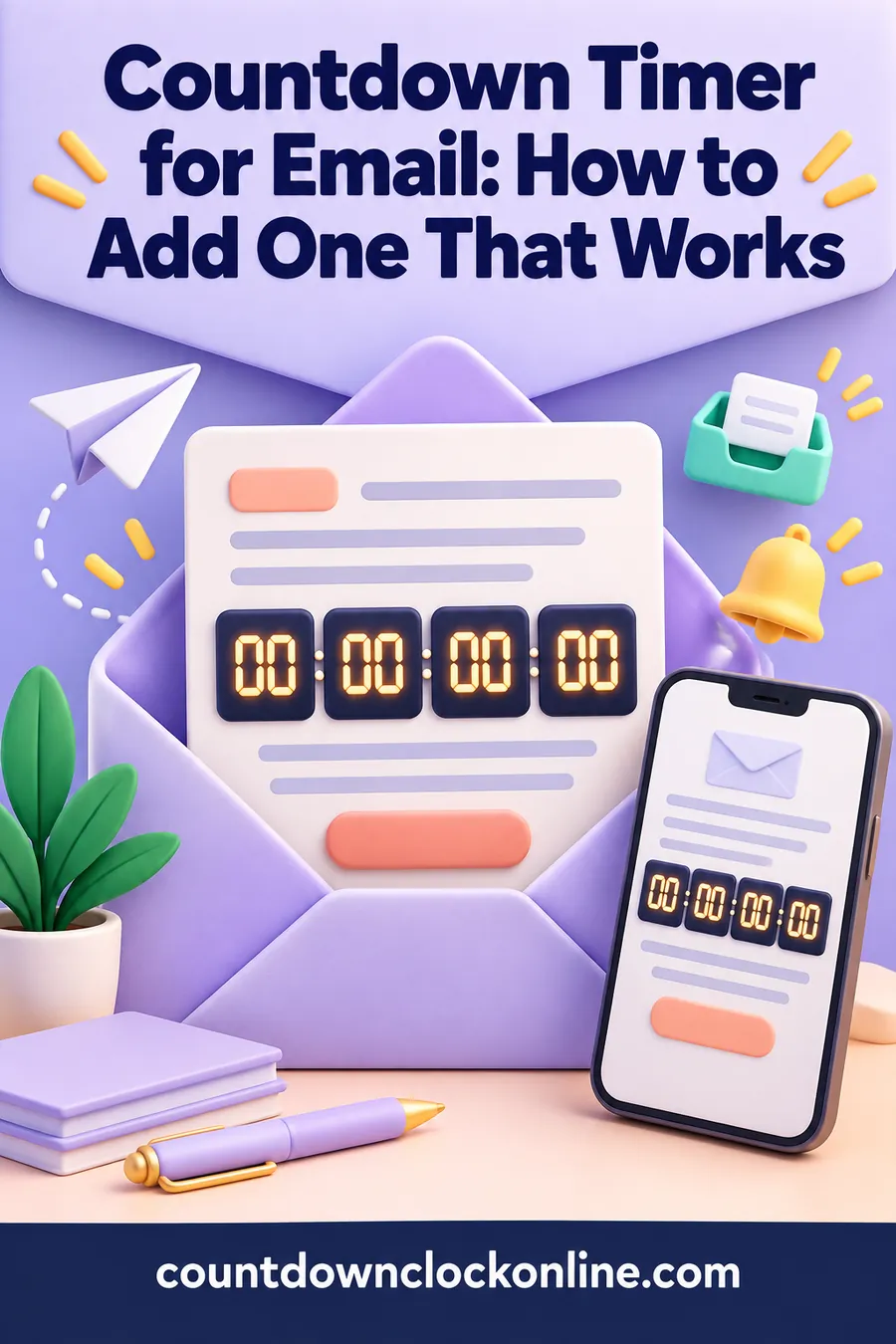
Countdown Timer for Email: How to Add One That Works
Need a countdown to share? Make a live countdown page and drop the link in your email.
Create a countdown linkA countdown timer for email has to be an image, not a live script, because inboxes block code from running. You either use an animated image that shows the time left when the email is opened, or you show the deadline in plain text and link to a live countdown page that ticks by the second.
Those are the only two approaches that actually work, and each fits a different situation. This guide explains why the usual website timer fails in an inbox, how the image method works under the hood, when a simple link to a live page is the smarter choice, where to place the timer in your message, and the mistakes that make email countdowns look broken or confusing.
Why a website timer won't work in an email
Email programs strip out scripts for safety, so the code that makes a timer tick on a web page simply never runs inside a message.
On a website, a countdown is a small piece of code that checks the clock every second and redraws the numbers. That's what our countdown timer for website guide walks you through embedding. Paste that same code into an email, though, and nothing happens. Inboxes treat any script in a message as a security risk, so they remove it before the reader ever sees it. Most also ignore iframes, which rules out the usual embed method too.
What inboxes do allow is images, links, and basic styling. Every working countdown timer for email is built from those three ingredients.
The two methods that work
Pick the animated image when the countdown is the star of the email. Pick the link to a live page when you want accuracy to the second and zero technical setup.
| Animated image timer | Text deadline plus live-page link | |
|---|---|---|
| What the reader sees | A timer graphic inside the email | A clear deadline line and a button |
| Ticks in the inbox | For about a minute after opening, then stops | No, it ticks once they click |
| Accurate to the second | Mostly, with caching caveats | Yes, always |
| Setup | Needs a service that builds the image on demand | Make a timer, copy the link |
| Works if images are blocked | No, unless you add text backup | Yes |
| Best for | Big launches, event reminders, flashy newsletters | Personal emails, small lists, family and team notes |
Method 1: The animated image timer
Here's how the image version works. Instead of attaching a normal picture, you place an image whose web address points to a server that builds the picture at the moment it's requested. When a reader opens your email, their mail program asks for the image, the server checks the current time, and it sends back a short animated GIF showing the remaining days, hours, minutes, and seconds counting down for a short stretch, usually about a minute.
That's why it looks live. It's really a fresh mini-movie, made for that exact open. If the reader closes the email and opens it again tomorrow, the server builds a new one with the updated time left.
To set this up, you need a tool or service that generates timer images on demand. Most email marketing platforms either include one or let you paste in an image address from an outside generator. The general steps look like this:
- Enter your deadline date, time, and time zone in the timer generator.
- Pick the colors, font, and labels (days, hours, minutes, seconds) to match your email.
- Copy the image code or image address it gives you.
- Paste it into your email as an image block, and link that image to your live page.
- Send a test to yourself and open it on a phone and a computer.
A saved, ready-made GIF won't do the job here. A file you create once and attach is frozen at the moment you made it, so it shows the wrong time to everyone who opens it later. If you want a looping animated graphic for social media or a website instead, our guide to countdown GIFs and animations covers that, and it's a different job from an email timer.
Method 2: The deadline line plus a live countdown link
This method skips the image service entirely. You write the deadline clearly in the email text, then add a button or link to a live countdown page that ticks every second.
- Open the countdown creator and type your event name, like "Registration Closes" or "Grandma's 90th Birthday Party."
- Pick the date and time, choose a look, and press Start countdown.
- Copy the share link it gives you.
- In your email, write the deadline in words, then add a button such as "See the live countdown" that points to that link.
That's it. There's nothing to break, the timer is always exactly right, and it works in every inbox, even text-only ones. It's the method we'd suggest for anything personal: a reunion, a team offsite, a baby shower, a class deadline, a club event. The link also keeps working after the email, so people can bookmark it or share it in a group chat.
A countdown timer for email: where to put it
Put the timer near the top, right under your headline, and always pair it with a sentence that states the deadline in plain words.
Placement makes a bigger difference than design. A few guidelines:
- Above the fold. The timer should be visible without scrolling on a phone. If someone has to hunt for it, it isn't creating any urgency.
- Under the headline, above the main button. Headline tells them what's happening, timer tells them how long they have, button tells them what to do. That order reads naturally.
- One timer per email. Two timers in one message compete with each other and look cluttered.
- Linked, always. Make the timer image clickable, pointing to the same page as your main button. People tap images.
- Backed by text. Right under the timer, add a line like "Doors close Friday, March 12 at 9:00 p.m. Eastern." That line does the work when images are off.
Writing the text around it
The words around the timer matter as much as the timer itself. A few patterns that read well:
- "Only a few days left to sign up. The countdown below shows exactly how long you have."
- "The reunion starts in..." followed by the timer, then "See you there!"
- "Voting closes when the clock hits zero."
Keep it calm and clear. A countdown already signals urgency, so you don't need shouting, exclamation-point pileups, or all-caps warnings on top of it.
Subject lines and preview text
The countdown inside the email only works if people open it, so let the subject line do some of the counting.
A few tips for the subject line and the short preview text that shows next to it in the inbox:
- Name the deadline. "Registration closes Friday" is clearer than "Don't miss out."
- Use a number when it's real. "3 days left to RSVP" works, but only if it's true when they open it. If you schedule the email for a different day, update the number.
- Match the subject to the timer. If the subject says three days and the timer says two, people trust neither.
- Use the preview text for the time and time zone. "Ends 9:00 p.m. Eastern on Friday" fits neatly in that space.
- Plan a short sequence. For a bigger event, many senders use a first announcement, a reminder a few days out, and a final "last day" note, each with the timer. Spread them out so you aren't filling anyone's inbox.
Testing before you hit send
Always send a test to yourself and check it on at least one phone and one computer, with images on and with images off.
Here's a simple test checklist:
- Open it on a phone. Is the timer readable without zooming? Is it above the fold?
- Open it on a computer. Does the timer sit neatly beside or under the headline?
- Turn images off. Most mail apps have a setting for this. Does the email still make sense? Is the deadline written in text?
- Click everything. Does the timer image link to the right page? Does the button?
- Check the time zone. Does the timer match the deadline you wrote in the text?
- Open it again later. If you're using an image timer, reopen the test an hour later and confirm the numbers moved.
Common mistakes to avoid
Most email countdowns that look broken fail for the same handful of reasons, and every one of them is easy to prevent.
- Pasting website timer code into the email. Scripts get stripped, so the reader sees a blank space or raw code. Use an image or a link instead.
- Attaching a regular GIF. A saved file can't know when someone opens it, so it shows stale numbers.
- Relying on the timer alone. Some readers block images by default, and some mail programs only show the first frame of an animated GIF. Write the deadline in text too, and make sure the first frame of your timer shows the real time left, not a blank or a logo.
- Forgetting the time zone. "Ends at midnight" means different moments for readers in different places. Name the zone, or set the deadline at a time that works across the country.
- Leaving the timer up after the deadline. If someone opens the email next week, a timer stuck at zero can confuse them. Many timer tools let you show an "event has ended" image after the deadline. Use it, and make sure the linked page says what happens next.
- Expecting a perfect count from every inbox. Some mail services store a copy of images the first time they load them, so a reader who reopens the email might see the earlier time. This is another reason to keep the written deadline in the text, where it's always right.
- Making the timer the whole email. An email that's just one big image looks like spam to filters and people alike. Surround it with real text.
Ideas for when to use an email countdown
A countdown works best when there's a real, fixed moment that matters to the reader.
Good fits include:
- Event sign-up deadlines: workshops, races, classes, volunteer shifts.
- Launches and openings: a new product, a new website, a store opening. Our product launch countdown ideas cover more ways to build excitement around a launch.
- Family and community events: reunions, milestone birthdays, school fundraisers, church picnics.
- Team and work deadlines: open enrollment, survey closes, a project kickoff.
- Live moments: a live stream, a webinar, a big announcement at a set time.
It's a weaker fit for anything without a real deadline. A fake countdown that resets every time someone opens the email will be spotted quickly, and it wears away the reader's trust. Only count down to something that actually happens when the clock hits zero.
Do it the easy way for personal emails
For a family note, a team update, or a small group, the live-link method is faster, more accurate, and just as fun.
Make the timer with the countdown creator, pick a theme that fits the occasion, and drop the link into your email with a friendly line like "Here's our countdown to the big day." People can keep it open on their phones, add it to their home screen, and watch the seconds tick. The creator also has a Save image button if you want to include a still snapshot in the email as a preview, linked to the live page.
A quick countdown timer for email checklist
Run through these points before every send and your countdown will look right in nearly every inbox.
- The deadline is written in plain text, with the date, time, and time zone.
- The timer sits near the top and is visible on a phone without scrolling.
- The timer image links to the same page as your main button.
- The first frame of an animated timer shows the real time left.
- You've sent a test and opened it with images on and off.
- You know what readers will see after the deadline passes.
If you can check every box, your countdown timer for email is ready. If a few boxes feel like too much work for a small list, fall back on the simple version: the deadline in words plus a link to a live timer. A plain, accurate countdown timer for email always beats a fancy one that shows the wrong numbers.
Need a countdown to share? Make a live countdown page and drop the link in your email.
Create a countdown linkFAQ
Can I put a live countdown timer in an email?
Not a scripted one. Inboxes block code, so the timer either has to be an image built at the moment the email is opened or a link to a live countdown page outside the email.
How does an animated countdown timer for email stay accurate?
The image's address points to a server, not a saved file. Each time the email is opened, the server checks the current time and sends back a fresh animated image showing the time left from that moment.
Why does my email timer show the wrong time?
Usually it's a saved GIF instead of an on-demand image, a time zone mismatch, or a mail service showing a stored copy of the image from an earlier open. Writing the deadline in text keeps readers informed either way.
Will the countdown work if the reader has images turned off?
An image timer won't show. That's why every email countdown should include the deadline written in plain words, plus a link to a live page.
Is a link to a live countdown page good enough?
For most personal, team, and small-group emails, yes. It's always accurate to the second, works in every inbox, and people can save the link to check again later.
Where should I place the timer in the email?
Near the top, right under the headline and above the main button, so it's visible on a phone without scrolling. Make the image clickable and add a text line with the exact deadline below it.
What should happen after the countdown ends?
Show an "ended" message if your timer tool supports it, and make sure the linked page explains what's next, whether that's the event itself, a replay, or the next date to watch for.
Need a countdown to share? Make a live countdown page and drop the link in your email.
Create a countdown link