How to Make a Countdown in Excel and Google Sheets
Skip the spreadsheet formulas Build a live countdown to any date in seconds.
Make your own countdownTo make a countdown in Excel, put your event date in one cell and type =A2-TODAY() in the next one, then format the result as a plain number. That single formula tells you how many days are left, it updates itself every day you open the file, and the exact same formula works in Google Sheets.
That's the whole trick. Everything else on this page builds on it: counting only workdays, showing weeks and days, coloring the cell as the date gets close, and keeping the formula from showing a negative number once the day has passed. If you just want a ticking clock you can share with people, skip the spreadsheet and use the free countdown creator instead. It takes about a minute and needs no formulas at all.
A spreadsheet countdown in Excel shines in one place: the office. When you're tracking ten deadlines at once, a single sheet with a days-left column beats ten separate timers. Here's how to build one properly.
The five formulas you actually need
Nearly every countdown in Excel or Google Sheets comes down to five formulas. Copy the one that matches what you're counting.
Assume your event date sits in cell A2. Put the formula in B2.
| What you want | Formula | Notes |
|---|---|---|
| Days left (calendar days) | =A2-TODAY() |
Format the cell as Number or General, not Date |
| Days left, never negative | =MAX(0,A2-TODAY()) |
Shows 0 on and after the day |
| Workdays left (Mon-Fri) | =NETWORKDAYS(TODAY(),A2)-1 |
Subtract 1 so today isn't counted |
| Weeks and days left | =INT((A2-TODAY())/7)&" weeks, "&MOD(A2-TODAY(),7)&" days" |
Returns text, like "6 weeks, 3 days" |
| Days, hours and minutes left | =INT(A2-NOW())&" days "&TEXT(A2-NOW(),"h:mm") |
A2 needs a date and a time |
A quick word on each, because each one has a small trap.
Days left. Excel stores dates as whole numbers, one per day, so subtracting today's date from a future date gives you the gap in days. The trap is formatting. Excel often guesses that the answer should be a date too, so you get something odd like "2/13/1900." Select the cell, choose Number or General from the format menu, and the real number appears.
Never negative. Once the event passes, =A2-TODAY() happily counts into negative numbers. Wrapping it in MAX(0, ...) stops it at zero. If you'd rather show a word, use =IF(A2<TODAY(),"Done",A2-TODAY()).
Workdays left. NETWORKDAYS counts Monday through Friday and includes both the start and end dates. That's why the minus 1 is there: most people don't count today as a remaining workday by the afternoon. You can also add a list of holidays as a third argument, covered below.
Weeks and days. INT gives the whole weeks and MOD gives the leftover days. The result is text, so you can't do more math with it, but it reads nicely on a shared tracker.
Days, hours and minutes. NOW() includes the current time, while TODAY() doesn't. Use NOW() whenever your target has a specific time attached, like a 9:00 a.m. launch.
Step by step: an office days-until tracker
A good countdown in Excel takes about ten minutes to set up and then runs itself for as long as you keep the file.
Here's a simple layout that works for project deadlines, vacation days, contract renewals, or anything else your team keeps an eye on.
- Set up the columns. In row 1, type these headers: Event, Date, Days Left, Workdays Left, Status.
- Enter your events. List one event per row in column A and its date in column B. Type dates in a format Excel recognizes, like 3/15/2027. If Excel left-aligns the date, it read it as text. Retype it until it lines up on the right.
- Add the days formula. In C2, type
=MAX(0,B2-TODAY()). Press Enter, then format the column as Number with zero decimal places. - Add the workdays formula. In D2, type
=MAX(0,NETWORKDAYS(TODAY(),B2)-1). - Add a status label. In E2, type
=IF(B2<TODAY(),"Done",IF(C2<=7,"This week",IF(C2<=30,"Coming up","Later"))). - Fill down. Select C2 through E2, then drag the small square at the bottom-right corner of the selection down to the last row of your list.
- Sort by date. Select your table and sort by the Date column, oldest to newest, so the most urgent items always sit at the top.
- Freeze the header row. Use View, then Freeze Panes, then Freeze Top Row, so the labels stay put when the list gets long.
That's a working tracker. Every morning you open it, the numbers move on their own.
Add your company's holidays
NETWORKDAYS counts every weekday, including days the office is closed. To fix that, make a small list of holiday dates somewhere on the sheet, say H2 through H12. Then give that list a name so the formula is easy to read and never slides out of place:
- Select H2 through H12.
- In Excel, click the Name Box (the small box just left of the formula bar), type
Holidays, and press Enter. In Google Sheets, open Data, then Named ranges, and name itHolidays. - Change the workdays formula to
=MAX(0,NETWORKDAYS(TODAY(),B2,Holidays)-1).
Because the range has a name, you can fill the formula down the whole column and every row still points at the same holiday list. Update the list once a year and every countdown in the sheet adjusts.
Different weekend days
If your team works a schedule other than Monday through Friday, use NETWORKDAYS.INTL. Its third argument sets which days count as the weekend. For example, =NETWORKDAYS.INTL(TODAY(),B2,11) treats only Sunday as a day off. Both Excel and Google Sheets support this function.
Color the countdown as the date gets closer
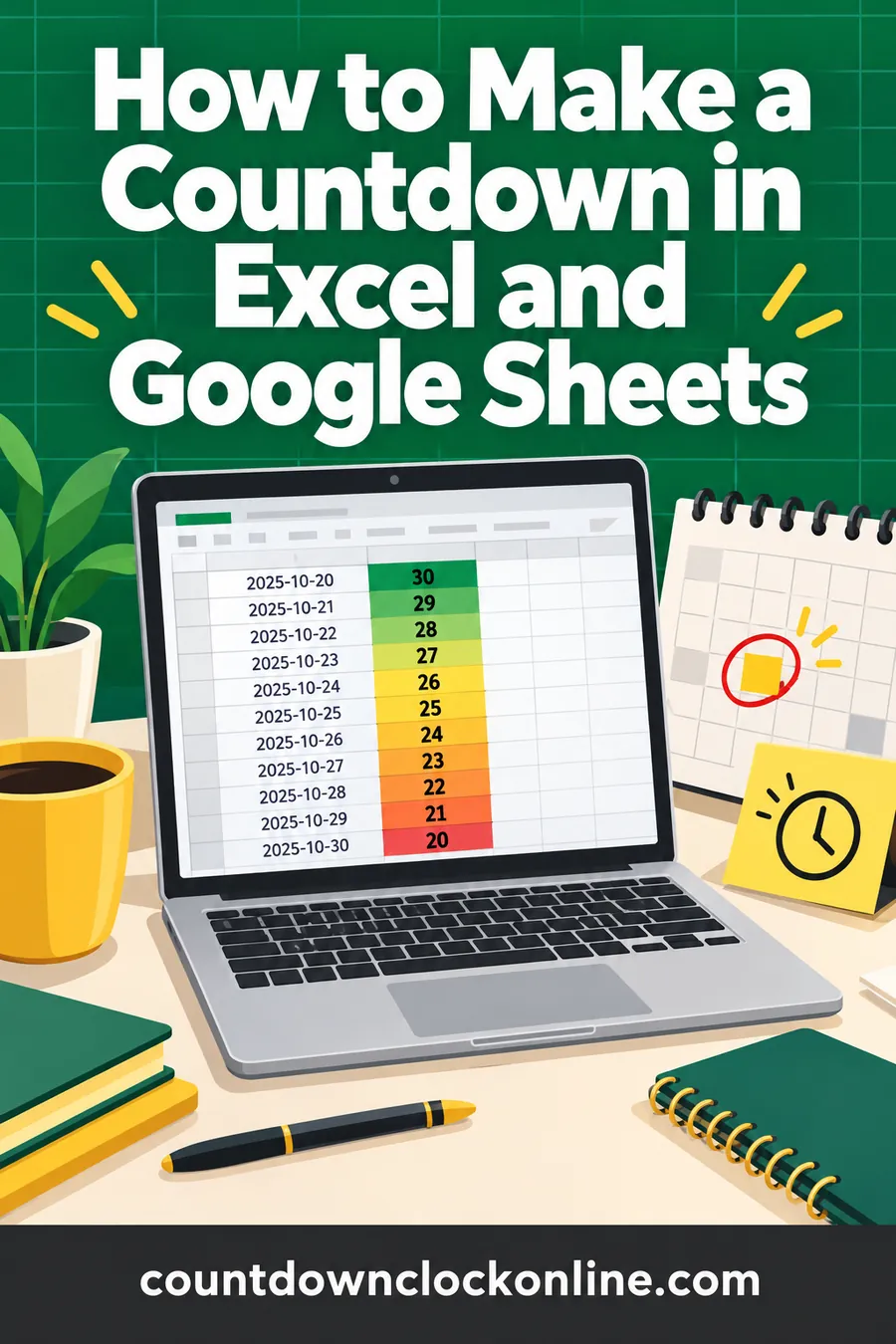
Conditional formatting turns a column of numbers into something you can read at a glance: green for plenty of time, yellow for soon, red for right now.
In Excel
- Select the Days Left column (C2 down to the last row).
- Go to Home, then Conditional Formatting, then New Rule.
- Choose "Format only cells that contain."
- Set it to "Cell Value," "less than or equal to," and 7. Click Format and pick a red fill.
- Add a second rule: "Cell Value," "between," 8 and 30, with a yellow fill.
- Add a third rule: "Cell Value," "greater than," 30, with a green fill.
In Google Sheets
- Select the column.
- Open Format, then Conditional formatting.
- Under "Format cells if," choose "Less than or equal to" and type 7. Pick a red fill.
- Click "Add another rule" and repeat for the yellow and green ranges.
Add a "this week" flag
If you want the urgent rows to jump out even more, add one more column called Flag and type =IF(AND(C2>0,C2<=7),"DUE SOON",""). Fill it down, then sort or filter on that column whenever you need a quick list of what's due this week. In both Excel and Google Sheets, the filter button sits on the Data menu.
A small tip: you can also add a data bar instead of a fill color. In Excel it's under Conditional Formatting, then Data Bars. Longer bars mean more time left, which makes a nice visual timeline without any extra work.
Show a big single countdown on a dashboard
For one important date, a single oversized cell works better than a whole table.
Pick an empty area of the sheet and merge a block of cells, about four columns wide and three rows tall. Type a formula that reads like a sentence:
="Only "&MAX(0,B2-TODAY())&" days until "&A2
Set the font size to something large, center it, and give it a fill color. Now it reads "Only 41 days until Product Launch" and updates daily. This is a nice touch for a shared team file, since it's the first thing everyone sees when they open it.
If you want hours and minutes too, use NOW() and remember that the target cell needs both the date and the time, like 3/15/2027 9:00 AM.
Does a spreadsheet countdown tick by the second?
Not really. Spreadsheets recalculate when something changes, not every second, so an Excel countdown is built for days, not for a live ticking clock.
Here's how each program behaves:
- Excel recalculates TODAY() and NOW() whenever you open the file, edit a cell, or press F9. The number is right when you look, but it won't tick while you watch.
- Google Sheets can refresh on a timer. Open File, then Settings, then the Calculation tab, and set Recalculation to "On change and every minute." That gets you a minute-by-minute update, which is as close as a sheet gets.
So if you need to watch seconds tick down, for a launch, a live stream, or the last minutes before a big moment, a spreadsheet is the wrong tool. Use a live timer instead. You can count down to a specific time down to the second, or make your own named timer with the countdown creator, which also gives you a share link and an embed code.
Countdown in Excel vs. a live online countdown
Use the spreadsheet for many dates you track privately at work. Use a live countdown for one date you want people to see and get excited about.
| Spreadsheet countdown | Live online countdown | |
|---|---|---|
| Best for | Tracking many deadlines at once | One event you want to share |
| Updates | When opened or edited (Sheets: every minute) | Every second |
| Workdays only | Yes, with NETWORKDAYS | Usually counts calendar time |
| Shareable link | Only by sharing the file | Yes, a single link anyone can open |
| Looks | Plain table with color rules | Themed full-screen clock |
| Setup time | About 10 minutes | Under a minute |
Plenty of people use both. The team keeps a deadline tracker in a shared sheet, and when one of those deadlines is the big one, like a launch day or a retirement party, someone makes a live timer and posts the link in the group chat. If you're curious about the other ways people mark time, our guide to ways to count down days covers paper chains, apps, and calendars too.
Common mistakes to avoid
Most broken spreadsheet countdowns come from four or five small, fixable mistakes.
- The answer shows as a date. Change the cell format to Number or General. This is the single most common problem.
- The date is stored as text. If the date sits on the left side of the cell, Excel treated it as words. Retype it, or use
=DATEVALUE(A2)to convert it. - Using the "d" custom format for days. It's tempting to format a date difference as "d" to show days, but "d" means day of the month, so anything over 31 days wraps around and shows the wrong number. Use INT() on the raw number instead.
- Forgetting the holidays list. NETWORKDAYS without a holiday range will overcount around the end of the year. Add your closures once and you're set.
- DATEDIF in the wrong order.
=DATEDIF(TODAY(),A2,"d")works, but it returns an error once the date passes because the start date is later than the end date. Plain subtraction with MAX is simpler and safer for a countdown. - Mixing up TODAY and NOW. TODAY() ignores the time of day. If your event has a start time and you use TODAY(), your hours will never be right.
Handy extras for your countdown in Excel
A few more formulas round out a really useful tracker.
- Months left:
=DATEDIF(TODAY(),A2,"m")gives whole months remaining. Pair it with=DATEDIF(TODAY(),A2,"md")for the leftover days. Just use it only for future dates. - Percent of the wait complete: If B2 holds a start date and A2 holds the end date,
=(TODAY()-B2)/(A2-B2)gives a fraction. Format it as a percentage. It's a great motivation tool for long projects or the stretch before retirement. - Day of the week the event falls on:
=TEXT(A2,"dddd")returns "Friday" or whatever the day is. - Today's day number in the year:
=TODAY()-DATE(YEAR(TODAY()),1,0)returns a number from 1 to 366. Handy for planning, and a fun stat for a team board. - Next business day after a deadline:
=WORKDAY(A2,1)skips weekends and, if you add a range, holidays too.
If you like seeing a whole month laid out, a countdown calendar shows the same wait as squares to cross off, and it's a nice companion to a spreadsheet for anyone who prefers paper.
When to skip the spreadsheet entirely
If the countdown is for fun, for family, or for a crowd, a spreadsheet is more work than it needs to be.
A sheet is great for a manager watching ten due dates. It's less great for a birthday, a vacation, a wedding, or a holiday, where the point is the excitement. For those, the steps in our guide on how to make a countdown get you a themed, shareable timer that updates live on any phone. You pick a name, a date, and a look, and you get a link to text to anyone. No formulas, no file sharing, no version confusion.
Skip the spreadsheet formulas Build a live countdown to any date in seconds.
Make your own countdownFAQ
How do I make a countdown in Excel that updates automatically?
Use =A2-TODAY() with your event date in A2. TODAY() updates every time the workbook recalculates, which happens when you open the file or edit any cell. Format the result as a number, not a date.
Can Excel count down in hours, minutes and seconds?
It can calculate them with =A2-NOW() formatted as [h]:mm:ss, but Excel won't refresh every second on its own. The number is correct when you open the file or press F9. For a clock that ticks live, a web-based countdown is the better choice.
How do I count only business days until a date?
Use =NETWORKDAYS(TODAY(),A2)-1. Add a third argument pointing to a list of holiday dates to skip those too. For a different weekend pattern, use NETWORKDAYS.INTL.
Does the same formula work in Google Sheets?
Yes. TODAY(), NOW(), NETWORKDAYS, NETWORKDAYS.INTL, DATEDIF, INT, and MOD all work the same way in Google Sheets. Sheets can also recalculate every minute if you turn that on under File, Settings, Calculation.
Why does my countdown show a weird date instead of a number?
Excel guessed the wrong format. Select the cell, change the format to Number or General, and the days-left value appears.
How do I stop the countdown from going negative?
Wrap the formula in MAX: =MAX(0,A2-TODAY()). Or use =IF(A2<TODAY(),"Done",A2-TODAY()) to show a word once the date has passed.
Can I share a spreadsheet countdown with people outside my team?
You can share the file, but that also shares everything else in it. For a public or family countdown, a live timer with its own link is easier and keeps your work file private.
Skip the spreadsheet formulas Build a live countdown to any date in seconds.
Make your own countdown